
You can spend hours creating content, optimizing your website, and researching keywords. But how do you know if Google is actually bringing people to your site?
That’s where Google Search Console comes in.
Google Search Console is a free tool from Google that helps website owners understand how their website performs in Google Search. You can see which search queries bring impressions and clicks, which pages are appearing in search results, and whether Google has identified certain issues with your website.
But simply connecting Search Console isn’t enough.
The real value comes from knowing what to look for and what to do with the data.
In this guide, you’ll learn how to use Google Search Console for SEO, find opportunities to improve existing content, discover new content ideas, monitor indexing, and make more informed SEO decisions.
What Is Google Search Console?
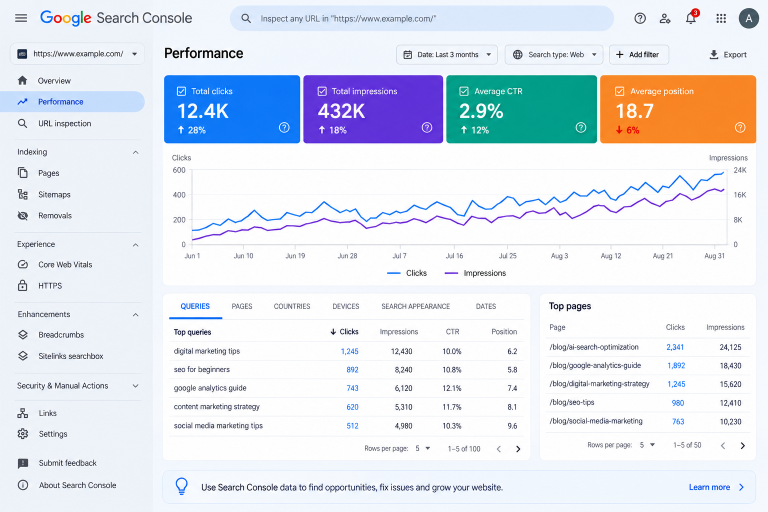
Google Search Console is a free service from Google that helps website owners monitor and understand their website’s presence in Google Search.
It provides information about:
- Search queries
- Clicks
- Impressions
- Click-through rate (CTR)
- Average position
- Indexed pages
- Indexing issues
- Core Web Vitals
- Sitemaps
- URL inspection
Think of it this way:
Google Search Console helps you understand what happens before someone visits your website from Google Search.
Google Analytics, on the other hand, helps you understand what visitors do after they arrive.
You can also learn more about how Google uses Search Console through Google Search Central’s Search Console documentation.
Why Is Google Search Console Important for SEO?
SEO isn’t simply about choosing a keyword, publishing an article, and waiting for rankings.
You need to understand how your website is performing and identify opportunities for improvement.
Google Search Console can help you answer questions such as:
- Which keywords are bringing impressions?
- Which pages are getting clicks?
- Which pages have a low CTR?
- Are important pages indexed?
- Which keywords are close to page one?
- Are there technical issues affecting your pages?
- What topics are people searching for?
This makes Search Console useful for both SEO analysis and content strategy.
For example, you might discover that one of your articles receives thousands of impressions but very few clicks.
That doesn’t necessarily mean the content is poor.
The page may be appearing for searches where the title doesn’t clearly communicate the value of the content. Or the page may not fully match the search intent.
That’s an opportunity to investigate and improve.
How to Set Up Google Search Console
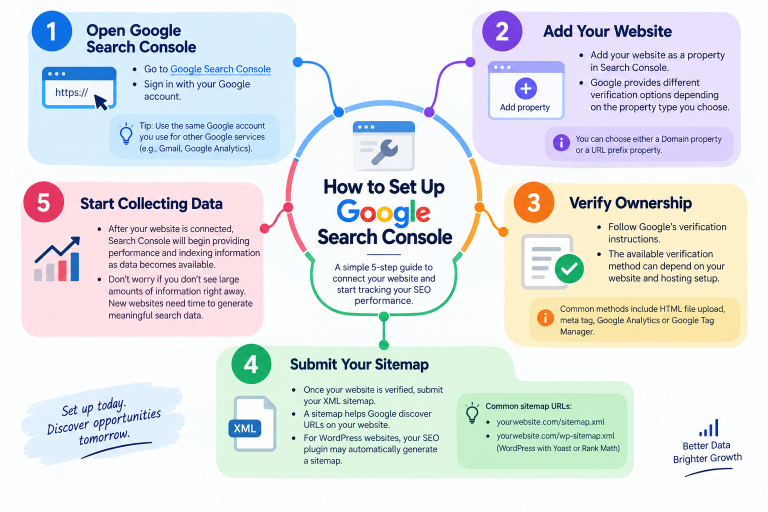
If you haven’t connected your website yet, the setup process is relatively straightforward.
Step 1: Open Google Search Console
Go to Google Search Console and sign in with your Google account.
Step 2: Add Your Website
Add your website as a property.
Google provides different verification options depending on the property type you choose.
Step 3: Verify Ownership
Follow Google’s verification instructions.
The verification method available to you can depend on your website and hosting setup.
Step 4: Submit Your Sitemap
Once your website is verified, submit your XML sitemap.
A sitemap helps Google discover URLs on your website.
For WordPress websites, your SEO plugin may automatically generate a sitemap.
Step 5: Start Collecting Data
After your website is connected, Search Console will begin providing performance and indexing information as data becomes available.
Don’t worry if you don’t immediately see large amounts of information.
New websites need time to generate meaningful search data.
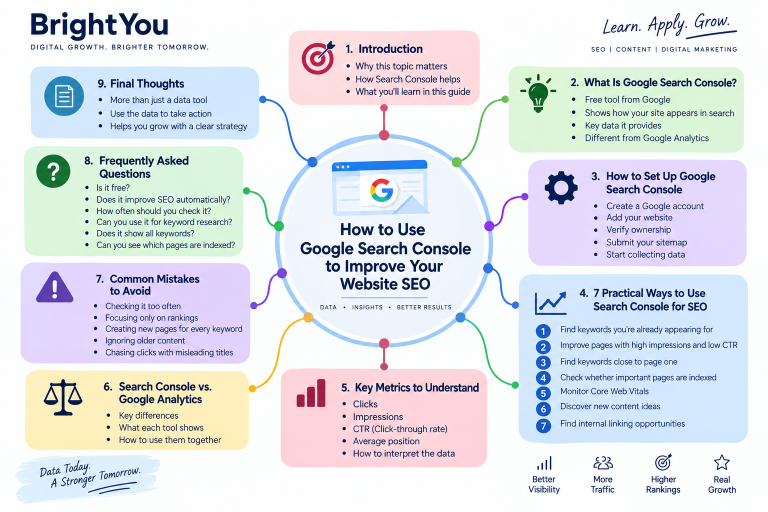
7 Practical Ways to Use Google Search Console for SEO
Now let’s look at how you can turn Search Console data into practical SEO actions.
1. Find Keywords Your Website Is Already Appearing For
One of the most useful places to start is the Performance report.
Go to:
Performance → Search results
You’ll see information related to the search queries associated with your website.
Pay attention to:
- Queries
- Clicks
- Impressions
- CTR
- Average position
Here’s where things become interesting.
Imagine you published an article about SEO for small businesses.
After a few weeks, Search Console shows that your page is also receiving impressions for a related search such as “local SEO tips for small businesses.”
You didn’t specifically create the article around that phrase, but Google is already showing your page for it.
That could be a content opportunity.
You could:
- Add a useful section about local SEO
- Expand an existing section
- Create a supporting article
- Add relevant internal links
Instead of guessing what your audience wants, you’re using actual search data to guide your decisions.
2. Improve Pages With High Impressions and Low CTR
Here’s another useful opportunity.
Suppose a page receives:
10,000 impressions
but only:
150 clicks
The CTR would be 1.5%.
A low CTR doesn’t automatically mean something is wrong. Search position, query type, competition, search intent, and SERP features can all influence CTR.
However, a page receiving substantial impressions and relatively few clicks is worth reviewing.
Check your:
SEO Title
Does it clearly explain what the page offers?
Meta Description
Does it accurately explain what the reader will find?
Search Intent
Does your content actually answer what the searcher wants?
Content
Does the page provide a clear and useful answer?
Don’t try to increase clicks with misleading titles.
The goal is to create a search result that is clear, relevant, and accurate.
3. Find Keywords Where You’re Close to Page One
Here’s an SEO opportunity many website owners overlook.
Look for keywords where your pages are appearing around positions 11–20.
These pages may already have visibility but aren’t appearing prominently on the first page.
Instead of immediately creating another article, review the existing page.
Ask yourself:
- Does the page fully satisfy the search intent?
- Is the information current?
- Are the headings clear?
- Could I add useful examples?
- Are relevant keywords missing?
- Could I improve internal links?
- Does the article answer the reader’s main question quickly?
For example, if your article is around position 14 for a relevant keyword, improving the existing content may make more sense than creating another page targeting the same intent.
SEO isn’t always about publishing more.
Sometimes it’s about making what you’ve already published more useful.
4. Check Whether Your Important Pages Are Indexed
Creating a great article doesn’t guarantee that Google will index it.
Search Console’s Page indexing report helps you understand which pages Google has indexed and identify certain indexing issues.
You can also use the URL Inspection tool to investigate an individual URL.
If an important page isn’t indexed, check for possible issues such as:
- Noindex directives
- Redirects
- Canonicalization
- Crawling problems
- Server errors
- Duplicate pages
Fixing technical issues can help Google access and understand your website more effectively.
However, remember that requesting indexing does not guarantee indexing or ranking.
5. Monitor Core Web Vitals
A website shouldn’t only provide useful content. It should also provide a good experience for visitors.
Google Search Console includes a Core Web Vitals report.
The three Core Web Vitals are:
LCP — Largest Contentful Paint
Measures loading performance.
INP — Interaction to Next Paint
Measures how responsive a page is to user interactions.
CLS — Cumulative Layout Shift
Measures visual stability.
If Search Console identifies problems, you can investigate the affected URLs and use tools such as PageSpeed Insights to understand what may need improvement.
For example, large images, slow server responses, or scripts that delay page loading can contribute to performance problems.
6. Use Search Console to Discover Content Ideas
One of the most useful ways to use Search Console is for content research.
Instead of starting every content plan with:
“What should I write about?”
Start with:
“What are people already searching for?”
Open your search queries and look for relevant topics that your website doesn’t fully cover.
You may find:
- Questions
- Long-tail keywords
- Related topics
- Keyword variations
- New content opportunities
Before creating a new article, check whether you already have a page covering the same search intent.
If you do, you might update that page instead.
If you don’t, a new article could make sense.
Once you identify several related topics, you can organize them into a content cluster and connect them with relevant internal links.
This creates a more structured and data-driven content strategy.
7. Find Internal Linking Opportunities
Internal links connect one page on your website to another.
They can help visitors discover related content and make your website easier to navigate.
For example, imagine your website has articles about:
- Keyword research
- On-page SEO
- Technical SEO
- Google Search Console
- Content strategy
- AI Search Optimization
These topics naturally relate to one another.
When updating an article, look for places where another relevant article would genuinely help the reader.
For example:
Search behavior can also help you identify opportunities for improving your AI Search Optimization strategy.
You can link AI Search Optimization to your existing BrightYou article:
Don’t add internal links simply to increase the number of links.
Relevance matters more than quantity.
How to Turn Search Console Data Into SEO Actions
Data is useful only when you do something with it.
Here’s a simple workflow you can follow.
Step 1: Check Your Queries
Find keywords generating impressions and clicks.
Step 2: Look for Opportunities
Identify pages with:
- High impressions
- Low CTR
- Positions around 11–20
- Relevant queries you’re not fully targeting
Step 3: Review the Page
Check the content, search intent, headings, title, links, and user experience.
Step 4: Make Improvements
Update the content where there is a genuine opportunity to make it more useful.
Step 5: Monitor the Results
Give Google time to recrawl and reassess the page.
Then compare the data over an appropriate period.
Don’t expect every update to produce an immediate ranking increase.
Google Search Console Metrics You Should Understand
You don’t need to become an analytics expert to start using Search Console.
Begin with these four metrics.
Clicks
The number of times users clicked your website from Google Search.
Impressions
The number of times your website appeared in Google Search results.
CTR
The percentage of impressions that resulted in clicks.
CTR = Clicks ÷ Impressions × 100
Average Position
An approximate average position of your site’s results for the selected data.
Don’t look at these numbers individually.
For example, an increase in impressions without a similar increase in clicks might mean that your website is appearing for more searches, but users aren’t clicking at the same rate.
The context behind the numbers matters.
Google Search Console vs. Google Analytics
These tools are often used together, but they provide different types of information.
| Google Search Console | Google Analytics |
|---|---|
| Search performance | Website activity |
| Search queries | User behavior |
| Impressions | Sessions and users |
| Search clicks | Engagement |
| Average position | Conversions |
| Indexing information | Traffic sources |
A simple way to remember it:
Search Console = How people find you through Google Search
Google Analytics = What people do after they arrive
Using both tools can give you a more complete picture of your website.
Common Google Search Console Mistakes to Avoid
Checking It Constantly
SEO data naturally changes.
Checking every small daily fluctuation can make it difficult to see meaningful trends.
Focus on a suitable period instead.
Focusing Only on Rankings
Ranking position matters, but it isn’t the whole story.
Consider clicks, impressions, CTR, content quality, conversions, and your broader goals.
Creating Separate Pages for Every Keyword
Different keywords can sometimes represent the same search intent.
Before creating a new page, check whether an existing page can satisfy the query.
Ignoring Older Content
Your older articles can contain valuable opportunities.
Review them periodically and update information that is outdated or incomplete.
Chasing Clicks
A high CTR isn’t useful if the page doesn’t satisfy the visitor.
Make sure your title accurately represents your content.
Frequently Asked Questions
Is Google Search Console free?
Yes. Google Search Console is a free service provided by Google.
Does Google Search Console improve SEO automatically?
No. Search Console provides data and tools that can help you identify opportunities and technical issues. You need to make the appropriate improvements yourself.
How often should I check Google Search Console?
There is no single schedule that works for every website. For many websites, reviewing the data regularly and focusing on longer-term trends is more useful than monitoring every daily change.
Can I use Google Search Console for keyword research?
Yes. Search Console can reveal search queries for which your website is already receiving impressions and clicks. These can provide useful ideas for content optimization and planning.
Does Google Search Console show every keyword?
No. Search Console shouldn’t be treated as a complete list of every query associated with your website.
Can I see which pages are indexed?
Yes. Search Console provides indexing information and tools such as URL Inspection that can help you investigate individual URLs.
Final Thoughts
Google Search Console isn’t just a dashboard full of numbers.
Used properly, it can become a practical part of your SEO workflow.
You can use it to discover what people are searching for, identify pages that need improvement, find content opportunities, investigate indexing issues, and understand how your website is appearing in Google Search.
The key is not simply to collect the data.
It’s to turn that data into useful actions.
Find a page with high impressions and low CTR? Review the search result.
Find a relevant keyword ranking around position 15? Look for ways to improve the existing page.
Find an important URL that isn’t indexed? Investigate the issue.
Find a new search query related to your business? Consider whether it deserves new or expanded content.
That’s how Google Search Console can move from being a reporting tool to becoming part of your SEO strategy.
Want to learn more about SEO, content strategy, analytics, and digital marketing? Explore more practical digital marketing resources on BrightYou.