

Tracking how visitors interact with your website is an important part of digital marketing. A visitor may click a button, submit a form, download a file, watch a video, or scroll through a page. Understanding these actions can help you measure website engagement and make better use of your analytics data.
But as your website grows, managing different tracking codes manually can become difficult.
This is where Google Tag Manager (GTM) can help.
Google Tag Manager provides a centralized way to manage tracking tags and connect website interactions with tools such as Google Analytics 4 (GA4) and other marketing platforms.
In this beginner-friendly guide, we’ll explain what Google Tag Manager is, how it works, its key components, what you can track, and how to set it up on your website.
What Is Google Tag Manager?
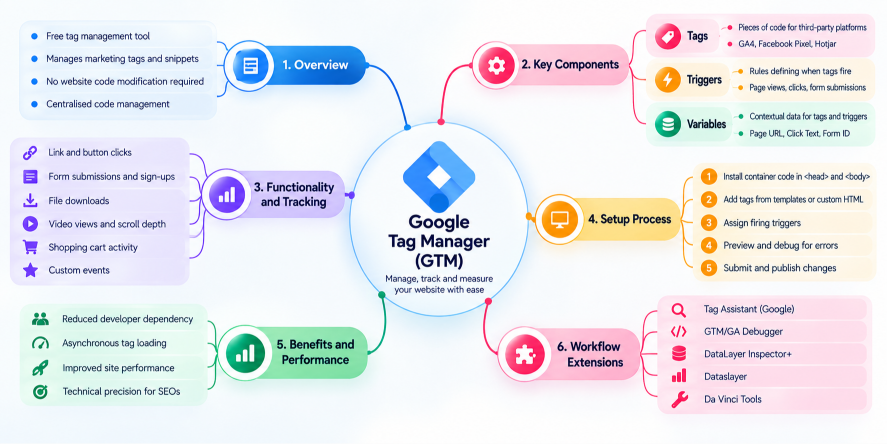
Google Tag Manager (GTM) is a free tag management system from Google that helps you manage and deploy tracking tags on your website.
Instead of repeatedly editing your website code whenever you need to add or update a tracking code, GTM allows you to manage many tags through a central interface.
You can use GTM with tools and platforms such as:
- Google Analytics 4
- Meta/Facebook Pixel
- Hotjar
- Other marketing and analytics platforms
You can learn more about the platform through the official Google Tag Manager website.
GTM uses a container installed on your website. Once the container is set up, you can create and manage tracking configurations through the GTM interface.
How Does Google Tag Manager Work?
The basic idea behind GTM is quite simple.
A visitor interacts with your website, and GTM checks whether that interaction matches the conditions you have configured. If the conditions are met, the appropriate tag fires and sends information to the connected platform.
For example, imagine you want to track when someone clicks your “Contact Us” button.
Your setup could include:
Tag: GA4 event tag
Trigger: Button click
Variable: Click Text
When the visitor clicks the relevant button, the trigger checks the conditions. If they match, the tag fires and sends the event information to the connected analytics platform.
This is how the main components of GTM work together.
The Three Core Components of Google Tag Manager
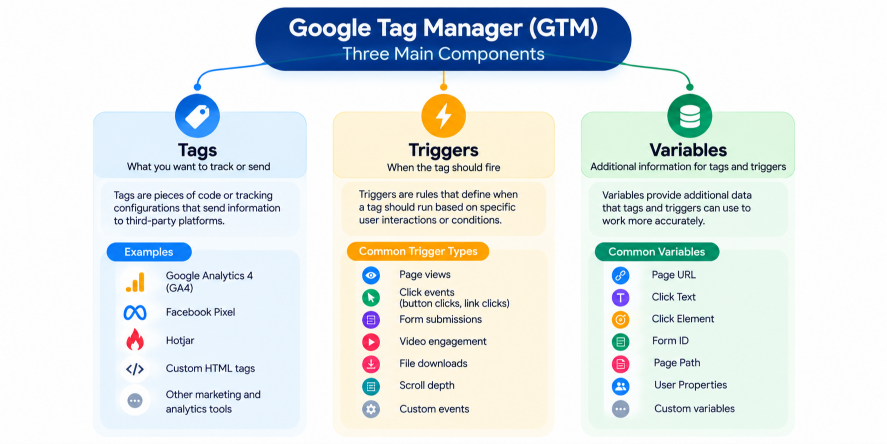
If you’re learning GTM for the first time, there are three concepts you need to understand: Tags, Triggers, and Variables.
1. Tags
A tag is a piece of code or tracking configuration that sends information to a marketing or analytics platform.
Examples include tags for:
- Google Analytics 4
- Facebook Pixel
- Hotjar
- Other analytics and marketing tools
Simply put:
Tag = What you want to track or send
2. Triggers
A trigger determines when a tag should fire.
Common examples include:
- Page views
- Button clicks
- Link clicks
- Form submissions
For example, you could create a trigger that fires only when a visitor clicks a particular button.
Simply put:
Trigger = When the tag should fire
3. Variables
Variables provide additional information that tags and triggers can use.
Examples include:
- Page URL
- Click Text
- Form ID
For example, the Click Text variable can help identify the text associated with a clicked element.
Simply put:
Variable = Additional information about the interaction
Understanding these three components makes it much easier to understand how GTM tracking works.
What Can You Track with Google Tag Manager?
Google Tag Manager can be used to track many different website interactions.
Depending on how your tracking is configured, you can track:
- Button and link clicks
- Form submissions and sign-ups
- File downloads
- Video views
- Scroll depth
- Shopping cart activity
- Custom events
For example, if you have a “Download Now” button on your website, you can create a trigger for that interaction and configure a tag to send the event information to your analytics platform.
This gives you greater visibility into how visitors interact with important elements of your website.
Google Tag Manager vs Google Analytics
GTM and Google Analytics are often used together, but they have different purposes.
Google Tag Manager
GTM helps you manage and deploy tracking tags.
Google Analytics 4
GA4 helps you collect, analyze, and report on website and user data.
A simple way to remember the difference is:
GTM → Manages and sends tracking information
GA4 → Collects and analyzes the information
For a deeper introduction to GA4, you can read our Google Analytics 4 (GA4) Beginners Guide on BrightYou.
So, GTM and GA4 aren’t replacements for each other. They can work together as part of a website measurement setup.
How to Set Up Google Tag Manager
Setting up Google Tag Manager involves several steps.
Step 1: Create a GTM Account and Container
Visit Google Tag Manager and create an account and web container.
After creating your container, GTM provides installation snippets that need to be added to your website in the locations specified by Google.
If you are not comfortable working with website code, you can ask a developer for assistance.
Step 2: Add Your Tags
Once the container is installed, you can start creating your tags.
Depending on your requirements, you can use available tag templates or custom HTML.
For example, you could create a tag to send a specific website event to Google Analytics 4.
Step 3: Configure Your Triggers
Next, decide when each tag should fire.
For example:
Tag: GA4 Event
Trigger: Button Click
You can configure the trigger to fire when a particular button or other website interaction meets your chosen conditions.
Step 4: Configure Variables
Variables provide additional information to your tracking setup.
For example, you could use:
- Page URL
- Click Text
- Form ID
Variables can help you create more specific conditions and collect useful information about interactions.
Step 5: Preview and Test
Before publishing your changes, use GTM Preview mode to test your setup.
Check whether the correct tags are firing when the expected actions take place.
You can also use Google Tag Assistant to help check and validate tag implementations.
Testing before publishing is an important part of maintaining accurate tracking.
Step 6: Submit and Publish
Once you have tested your configuration and confirmed that everything works as expected, submit and publish your changes.
Your updated GTM configuration will then become active on your website.
Benefits of Using Google Tag Manager
GTM can make website tracking easier to organize and manage.
Reduced Developer Dependency
Once the GTM container has been installed, marketers can manage many tracking configurations through the GTM interface without repeatedly modifying website code.
However, developer assistance may still be useful for initial installation and more advanced implementations.
Centralized Tag Management
GTM provides a central location for managing multiple tracking tags.
This can make your tracking setup easier to organize as your website uses more marketing and analytics tools.
Easier Testing
GTM includes Preview and debugging functionality that allows you to test your tracking configuration before publishing changes.
This can help identify problems before they affect your live tracking setup.
Flexible Website Tracking
With the right combination of tags, triggers, and variables, you can create tracking configurations for different website interactions.
GTM and Website Performance
GTM uses asynchronous loading for tags, which means tags can load without unnecessarily blocking other website processes when configured appropriately.
However, GTM itself isn’t a guarantee of a fast website. The number and type of third-party scripts you add can still affect website performance.
For this reason, it’s important to review the tags running through your container and remove unnecessary tracking configurations.
Useful Tools for GTM Testing and Debugging
Working with GTM involves testing and troubleshooting. Several browser tools can make this process easier.
Google Tag Assistant
Google Tag Assistant can help check and validate tag and container implementations.
DataLayer Inspector+
This tool can help you inspect data layer values and understand what information is being passed during website interactions.
GTM/GA Debugger
Debugging tools can help identify issues with Google Tag Manager and Google Analytics implementations.
Dataslayer
Dataslayer can help display tag and trigger behavior while working with a website.
Da Vinci Tools
Da Vinci Tools provides additional functionality for users who need more advanced debugging capabilities.
A Simple Example: Tracking a Button Click
Let’s take a practical example.
Suppose your website has a “Get Started” button, and you want to track how often visitors click it.
Your setup could look like this:
Tag: GA4 Event Tag
Trigger: Button Click
Variable: Click Text
Event: Get Started Button Click
When someone clicks the button, GTM checks whether the trigger conditions are met.
If they are, the tag fires and sends the event information to the connected analytics platform.
This simple example shows the relationship between the three main components:
Variable → Provides information
Trigger → Determines when
Tag → Sends the information
How GTM Fits into Your Digital Marketing Strategy
Website tracking is only one part of digital marketing.
Once you understand how visitors interact with your website, you can combine tracking data with other tools to understand website performance and marketing activity.
For example, Google Search Console can help you understand your website’s search performance. You can learn more in our Google Search Console SEO guide.
For local businesses, your website and search presence can also work alongside your Google Business Profile SEO strategy.
Together, these tools cover different areas of your digital marketing workflow.
Frequently Asked Questions About Google Tag Manager
Is Google Tag Manager free?
Yes. Google Tag Manager is a free tag management tool provided by Google.
What are the main components of GTM?
The three core components are Tags, Triggers, and Variables.
Can GTM track button clicks?
Yes. You can configure GTM to track button clicks using appropriate tags, triggers, and variables.
Can GTM track form submissions?
Yes. Form submissions and sign-ups can be tracked when the appropriate tracking configuration is implemented.
Can Google Tag Manager work with GA4?
Yes. GTM can be used to configure and deploy tracking that sends relevant event information to Google Analytics 4.
Do I need coding knowledge to use GTM?
You can perform many GTM tasks through its interface, but some technical knowledge can be helpful. Initial container installation and advanced tracking implementations may require website code or developer support.
Does Google Tag Manager slow down a website?
GTM loads tags asynchronously, but third-party scripts can still affect website performance. The impact depends on what tags are installed and how they are configured.
Conclusion
Google Tag Manager makes website tracking easier to organize by bringing tags, triggers, and variables into one centralized system.
Whether you want to track button clicks, form submissions, downloads, video interactions, or other website events, GTM provides a flexible way to manage your tracking setup.
The three concepts to remember are:
Tags = What you want to track
Triggers = When you want it to happen
Variables = Information about the interaction
Once you understand these basics, you can start creating, testing, and managing useful tracking configurations for your website.
For digital marketers and website owners, learning Google Tag Manager is a practical step toward understanding website interactions and making better use of analytics data.
Want to improve your digital marketing skills? Explore more practical SEO, analytics, and digital marketing guides on BrightYou.